
Malaysia - Getting Set Up with MyInvois
Connect your business to MyInvois (LHDN) through eezi: activate MyTax, set up your taxpayer profile, register eezi as your ERP system and nominate VAT IT Malaysia as your intermediary.
In Malaysia, invoices are submitted to MyInvois, the e-invoicing system run by the Inland Revenue Board of Malaysia (IRBM, also known as LHDN), for near real-time validation. For eezi to submit and manage e-invoices for your business, three things must be in place:
- Your business has active access to the MyTax and MyInvois portals.
- eezi is registered as your ERP system in MyInvois.
- VAT IT Malaysia Sdn Bhd (eezi's Malaysian entity) is nominated as your intermediary.
These steps need your director's own MyTax login, so eezi cannot complete them for you.
The onboarding journey at a glance
| Step | What happens | Who | Time |
|---|---|---|---|
| 1 | Send your company information and documents | You, to eezi | 10 minutes |
| 2 | Activate MyTax access and generate a digital certificate | Your director | 20 minutes |
| 3 | Apply for the director role and appoint a representative | Your director | 3 to 5 working days for IRBM approval |
| 4 | Set up your MyInvois taxpayer profile | You | 10 minutes |
| 5 | Register eezi as your ERP system | You | 5 minutes |
| 6 | Nominate VAT IT Malaysia as your intermediary | You | 5 minutes |
Already registered?
- Your company already has a MyTax account and an active director role: skip Steps 2 and 3.
- Your company is also already registered on MyInvois: skip Step 4 too and go straight to Step 5.
Testing first?To test in the pre-production (UAT) environment, follow the same steps on preprod-mytax.hasil.gov.my instead of the production portal. Some screenshots on this page come from that testing environment. Pre-production and production are separate: complete the steps in each one you use.
Step 1: Send your company information to eezi
eezi uses these details to set up your organisation and register your company on its Peppol Service Metadata Publisher (SMP), which creates your Peppol endpoint. You need the same details for the MyTax and MyInvois portals, so gathering them now makes the later steps quicker.
Send to your eezi onboarding contact:
| Item | Details |
|---|---|
| Company details | Company name, registered address, country code and Tax Identification Number (TIN) |
| Business certificate | Your Business Registration Certificate, or the equivalent document for foreign entities |
Have ready for the portal steps:
| Item | Details |
|---|---|
| Director or representative | Full name, ID type, ID number, email address and phone number of the registered director or company representative |
| Entity details | Entity name, Business Registration Number (BRN), TIN and address |
| SST | SST Registration Number, if you have one |
Check who can open the director's mailboxMyTax sends activation emails to the registered director's email address throughout Steps 2 and 3. Confirm who has access to that mailbox before you start. This is the most common reason onboarding stalls.
Step 2: Activate MyTax and generate a digital certificate
MyTax (mytax.hasil.gov.my) is the gateway to MyInvois. Under the Digital Signature Act 1997, the director needs a digital certificate to log in. Without it, your company cannot set up a MyInvois profile or nominate an intermediary.
Skip this step if your director already has a MyTax account. Go to Step 3, or to Step 4 if the director role is already active.
Which route you take depends on whether the director has already received a registration email from IRBM.
Option A: No registration email received
- Go to mytax.hasil.gov.my, select the director's ID type and enter their ID number.
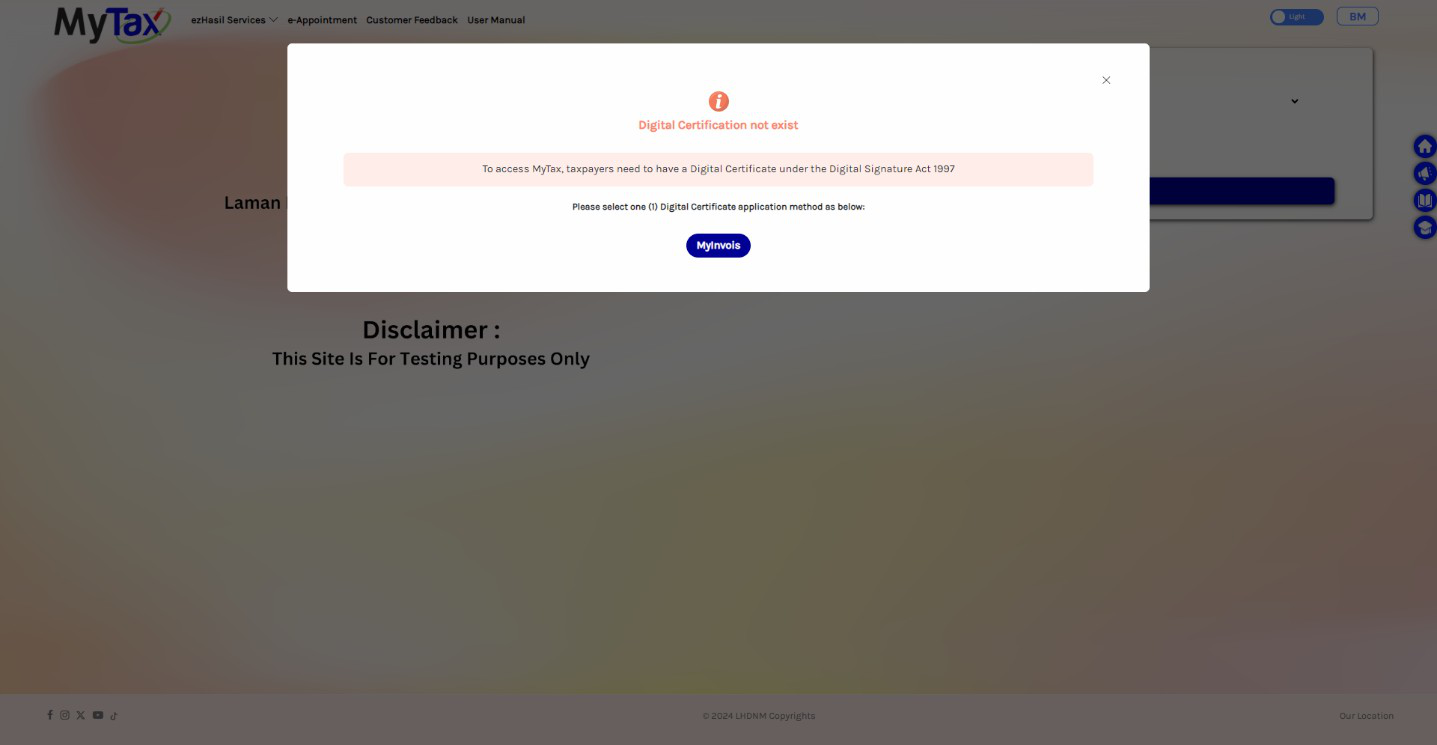
- A pop-up says the user's digital certificate does not exist. Click MyInvois to apply for one.
- A confirmation pop-up for the first login application appears. Select Yes, so the director's registered email address is used.
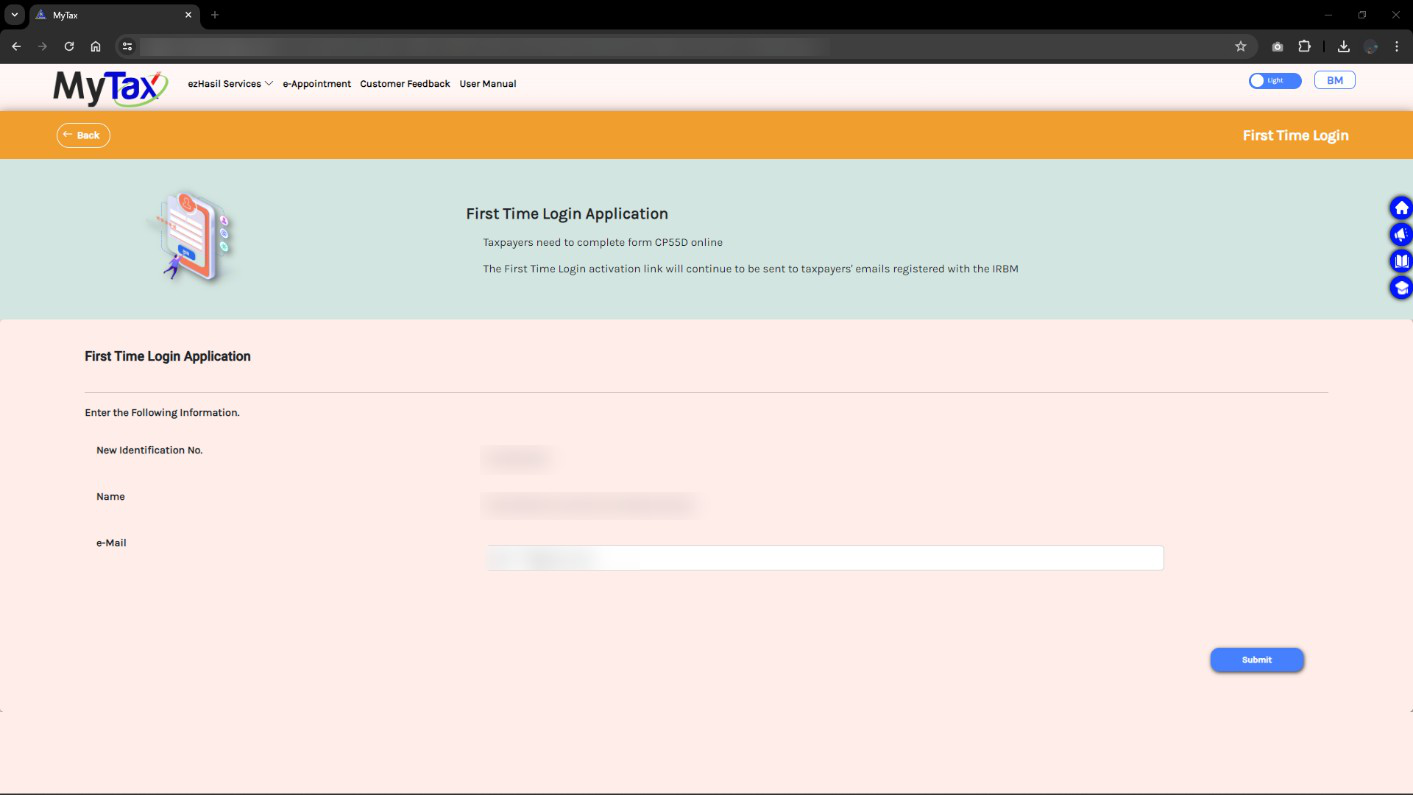
- On the First Time Login Application page, click Submit to apply for a PIN number.
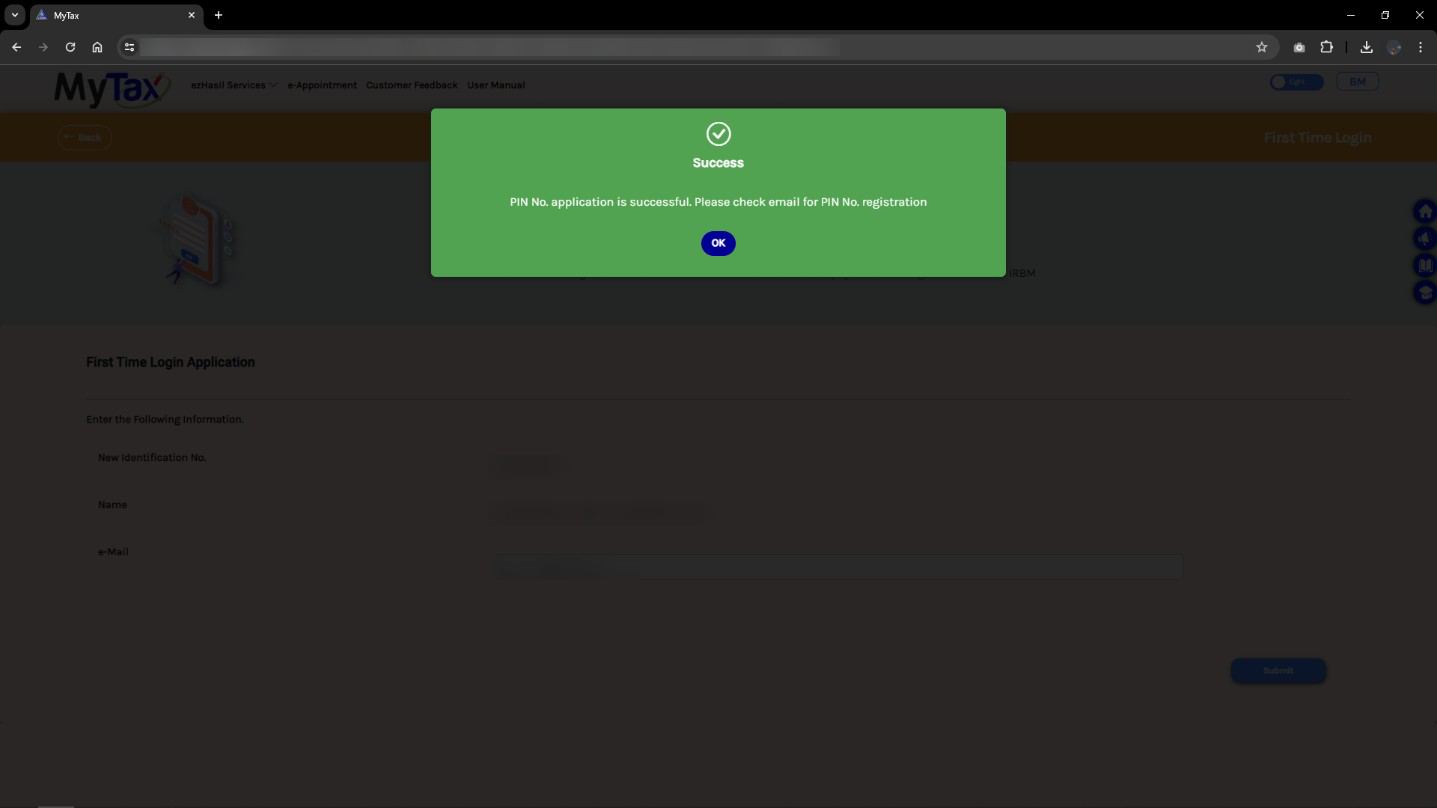
- A success pop-up confirms the PIN application. Click OK.
- The director receives an email from [email protected] at their registered email address, with a link to activate the PIN. Forward a copy to your eezi onboarding contact.
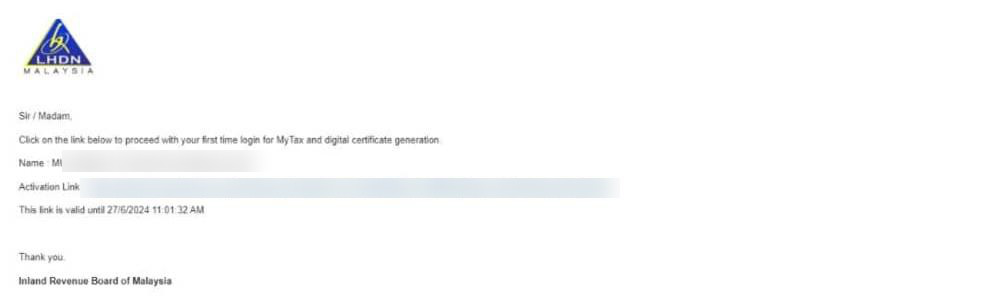
- Click the link in the email, then continue with Complete the digital certificate.
Option B: Registration email already received
-
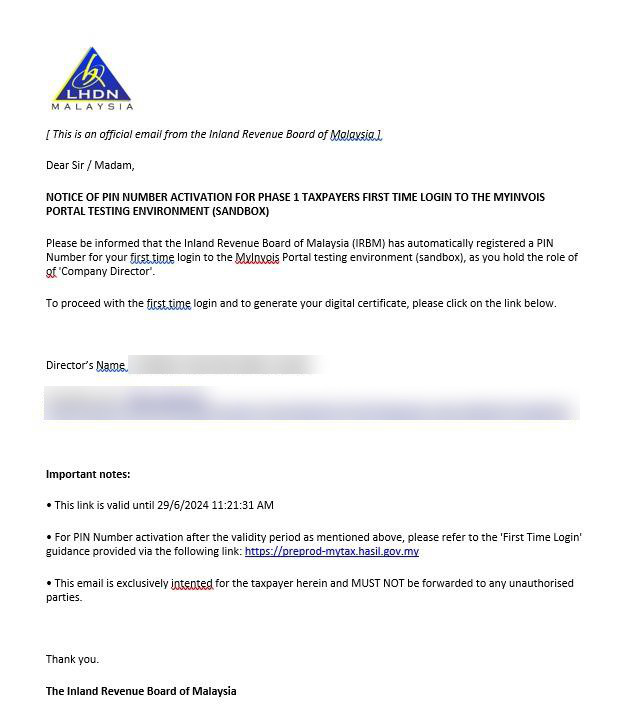
The director has received an email from [email protected] with a first-time login link. Forward a copy to your eezi onboarding contact.
-
Click the link in the email to open the First Time Login page, then continue below.
Complete the digital certificate
-
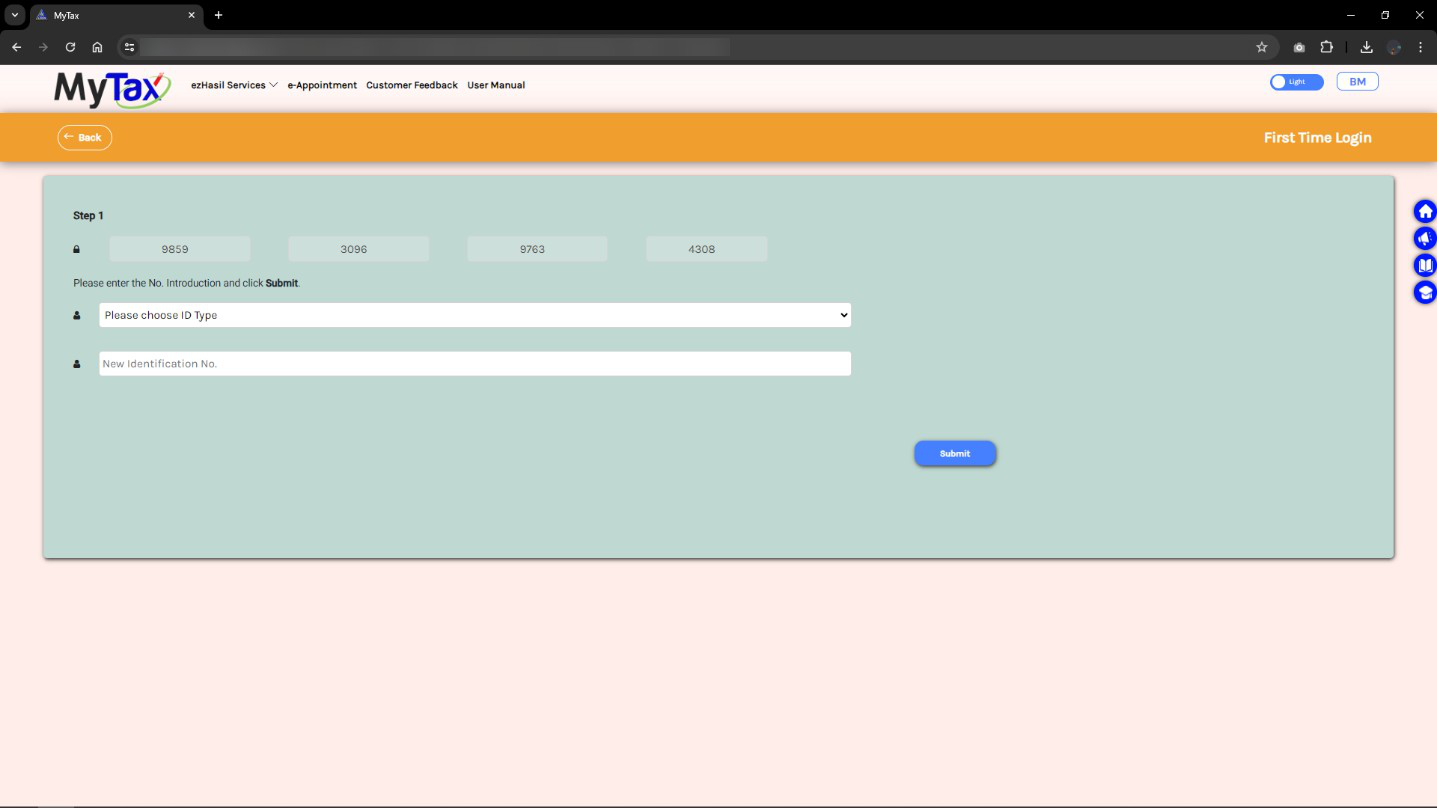
Choose the User ID Type and enter the identification number.
-
Click Submit.
-
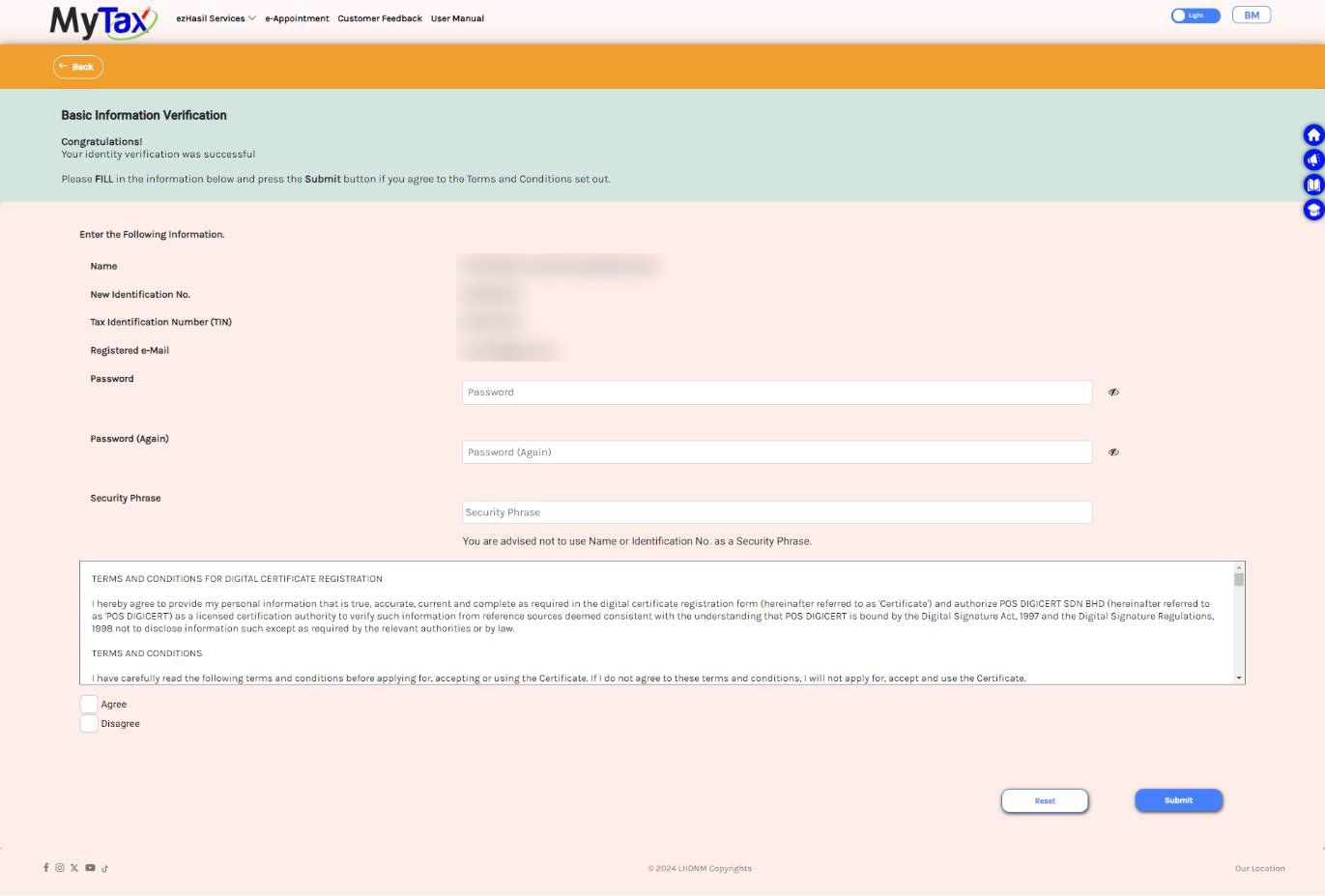
Check the details shown, then enter and confirm the password the director will use for MyTax.
-
Enter a security phrase. Do not use a name or ID number.
-
Tick the box to accept the Digital Certificate Registration Terms and Conditions. Click Reset to clear the form and start again if needed.
-
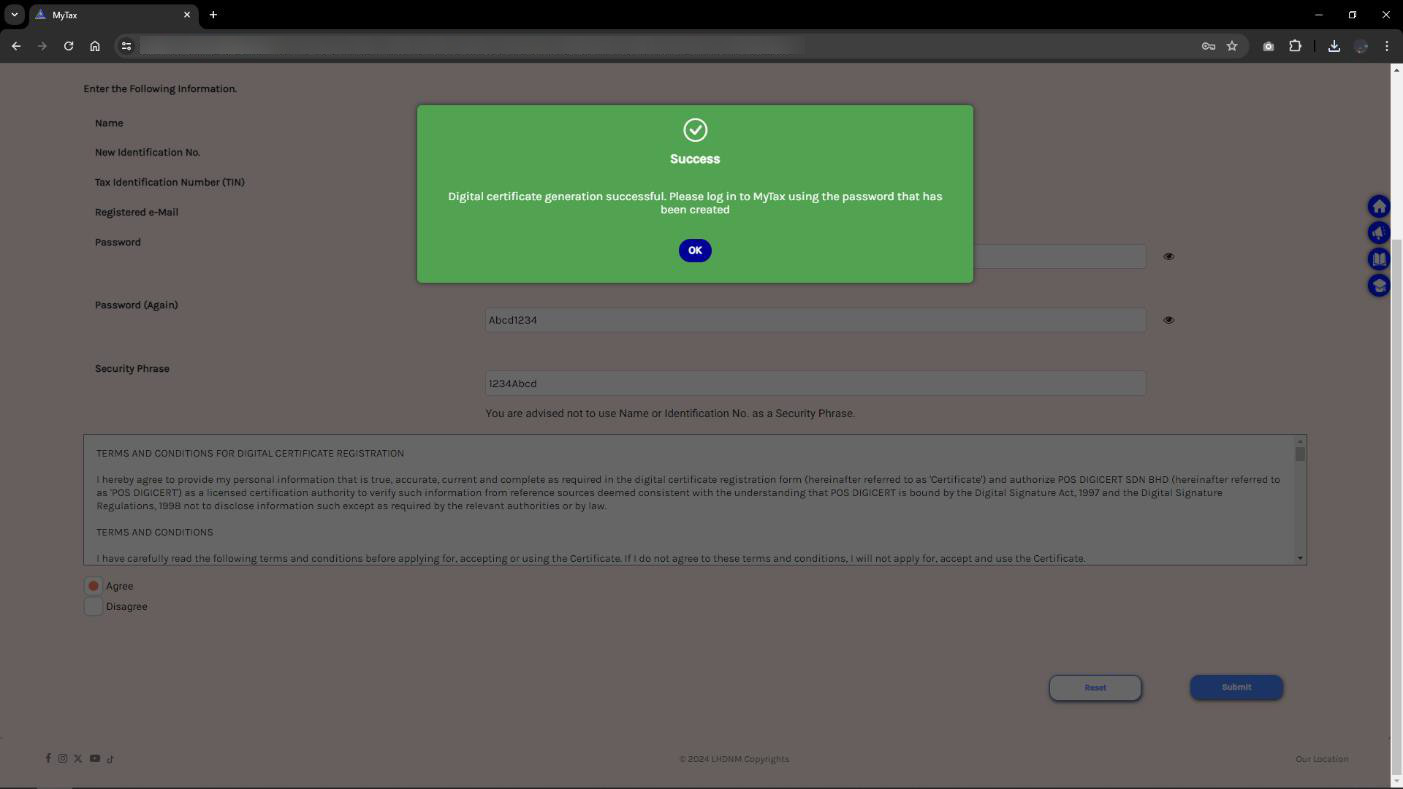
Click Submit. A success pop-up confirms the digital certificate has been generated.
-
Click OK. You return to the login page. If not, go to mytax.hasil.gov.my.
Step 3: Apply for the director role and appoint a representative
A personal MyTax login cannot manage company settings until IRBM approves the director role for that company. That approval is what lets you set up the company's MyInvois profile, ERP connection and intermediary.
Apply for the director role
-
Log in to MyTax with the ID and password from Step 2.
-
Click Profile, then open the Role Application tab.
-
Complete the form:
Field Value Role Type New Application Type of Application Directors of the company TIN Your company's Tax Identification Number 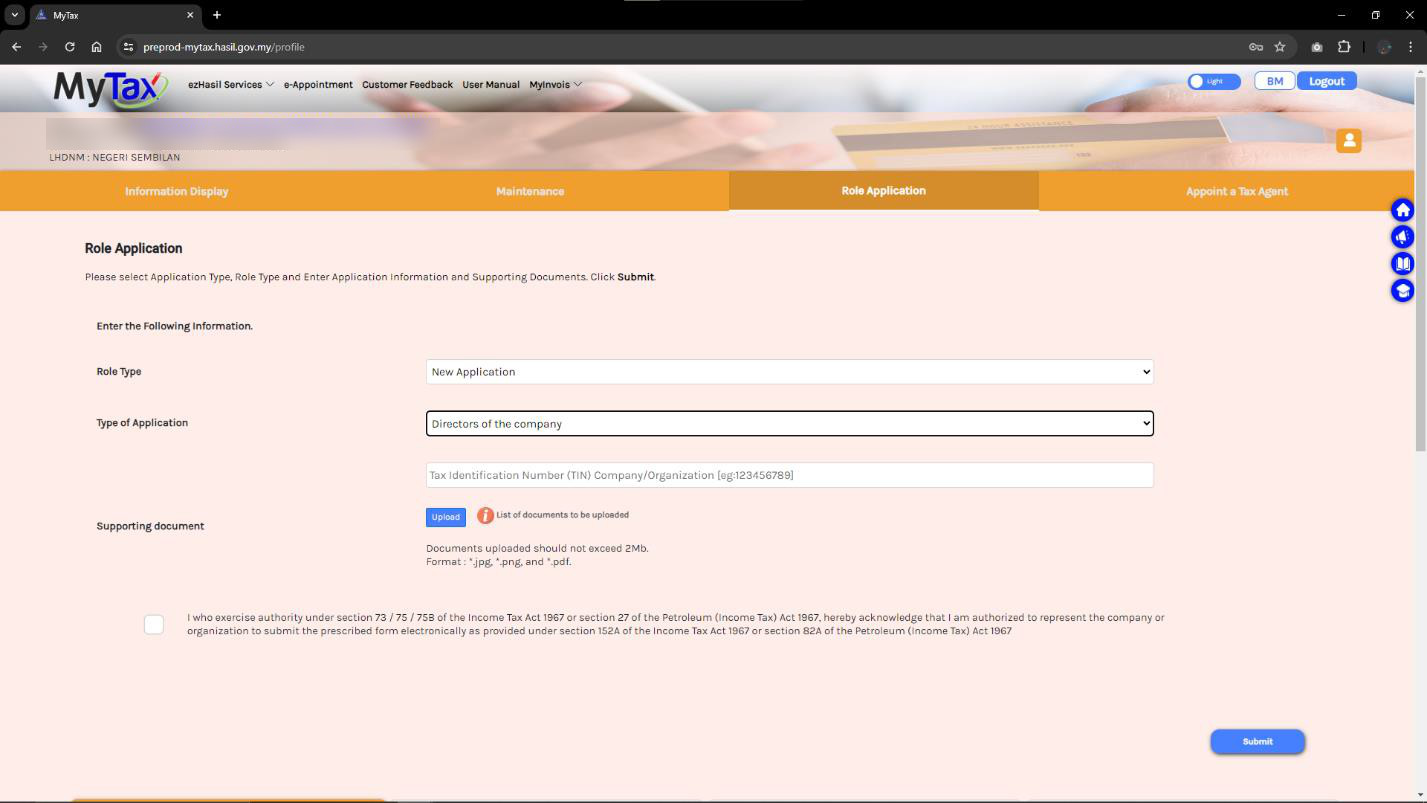
-
Click Upload to attach your supporting documents. The information icon next to Upload lists the accepted documents. Files must be JPG, PNG or PDF, up to 2 MB each.
-
Tick the acknowledgement box and click Submit.
Allow 3 to 5 working daysIRBM verifies the application manually. The director receives an email when the role is active. You cannot continue until then.
Select the role and appoint a representative
Appointing a company representative is optional. It lets someone other than the director act for the company.
-
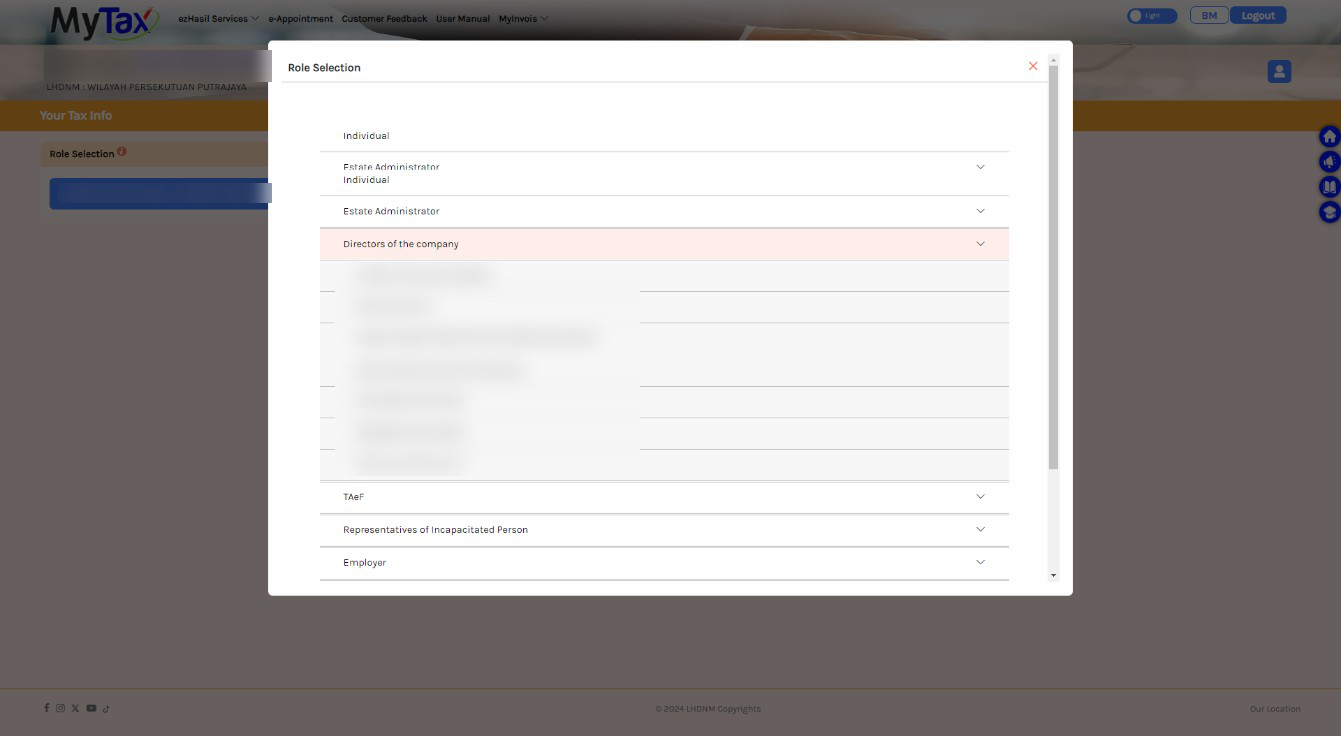
Once the role is active, log in to MyTax and click Role Selection.
-
Click Directors of the company and select your company. Check that the correct director appears.
-
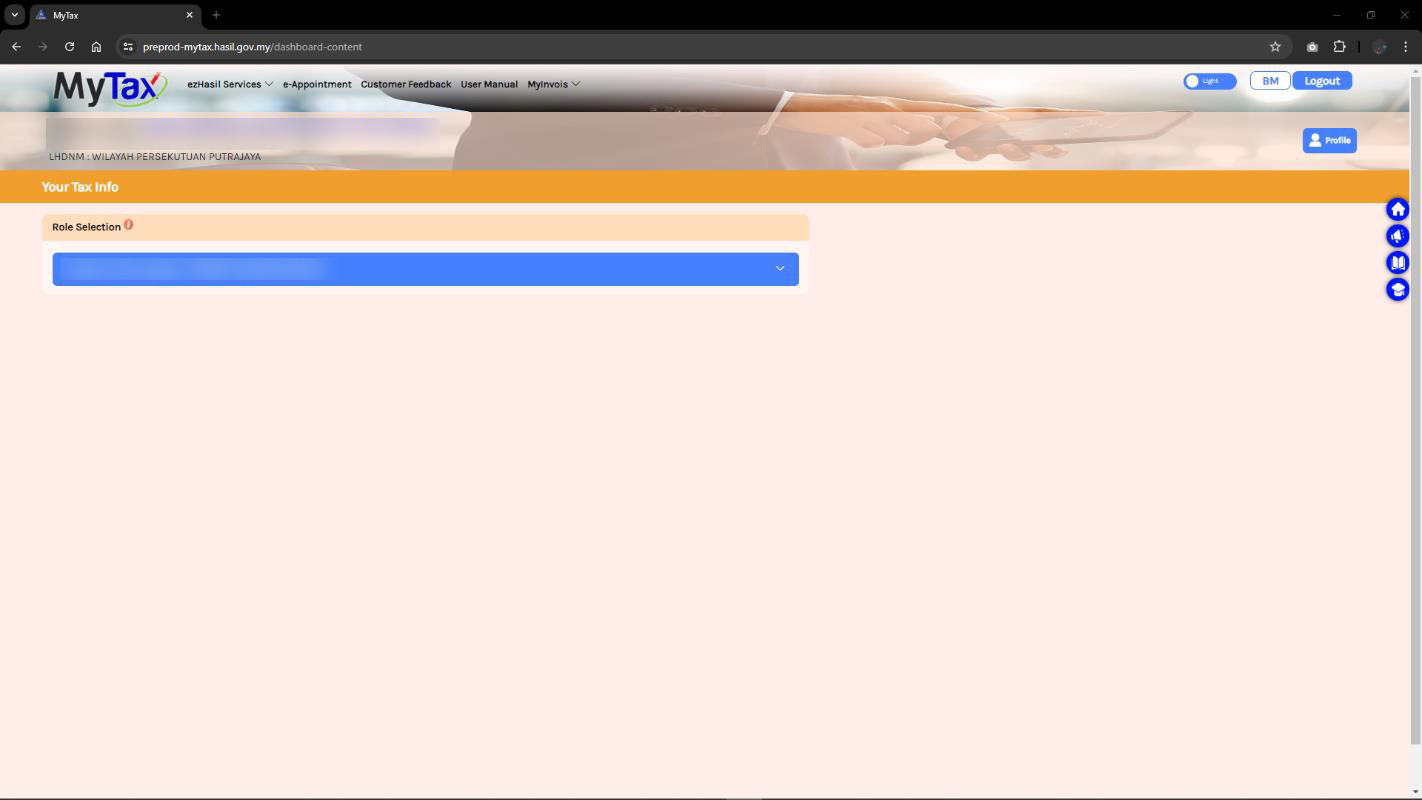
To appoint a representative, click Profile.
-
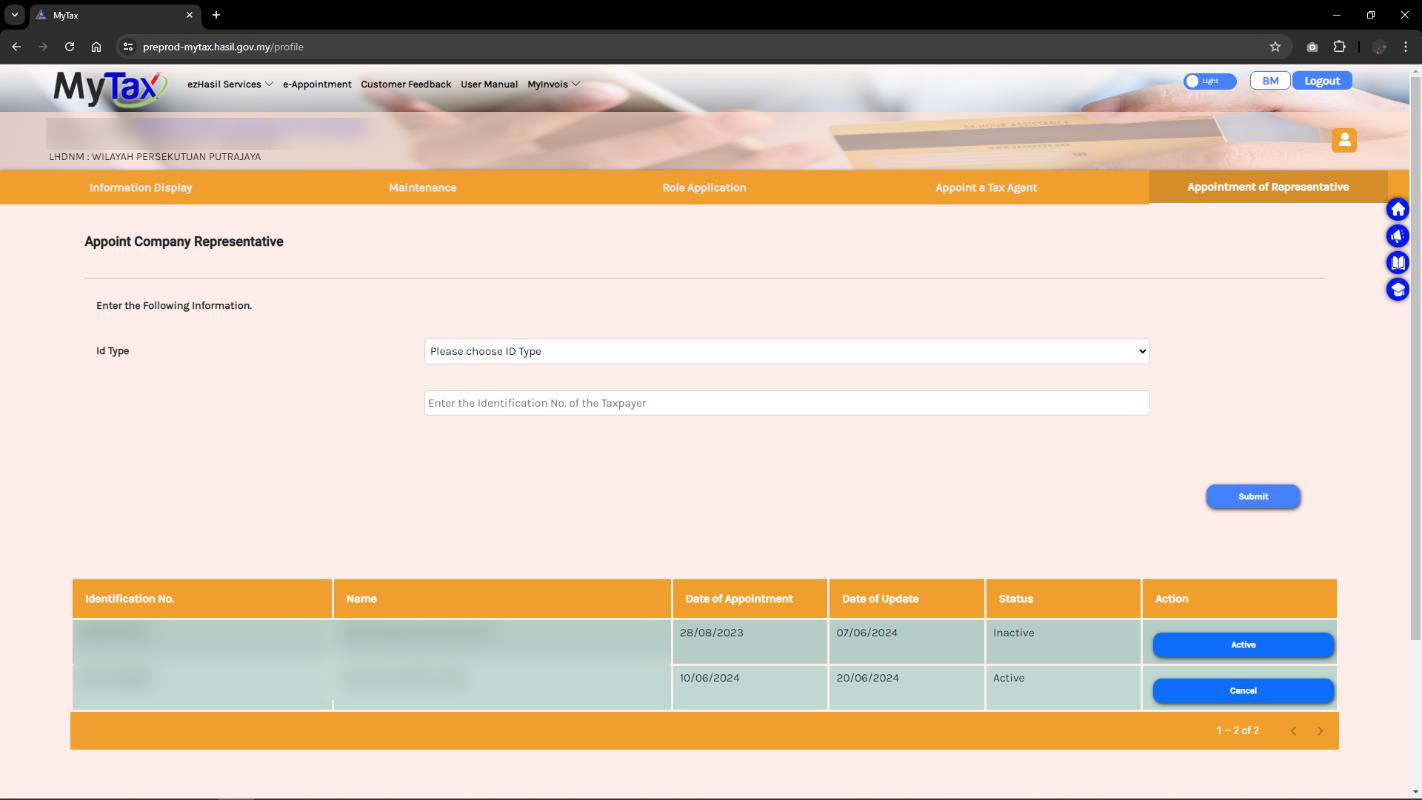
Open the Appointment of Representative tab.
-
Choose the representative's ID type, enter their ID number and click Submit.
-
Click Activate next to the representative.
-
Click the MyTax logo to return to the main page.
Step 4: Set up your MyInvois taxpayer profile
Your MyInvois taxpayer profile is where your ERP connection and intermediary are managed. It must exist before eezi can be connected.
Skip this step if your company is already registered on MyInvois.
-
Log in to MyTax with the director's ID type, ID number and password, then select MyInvois in the top menu.

-
Accept the MyInvois Terms and Conditions.
-
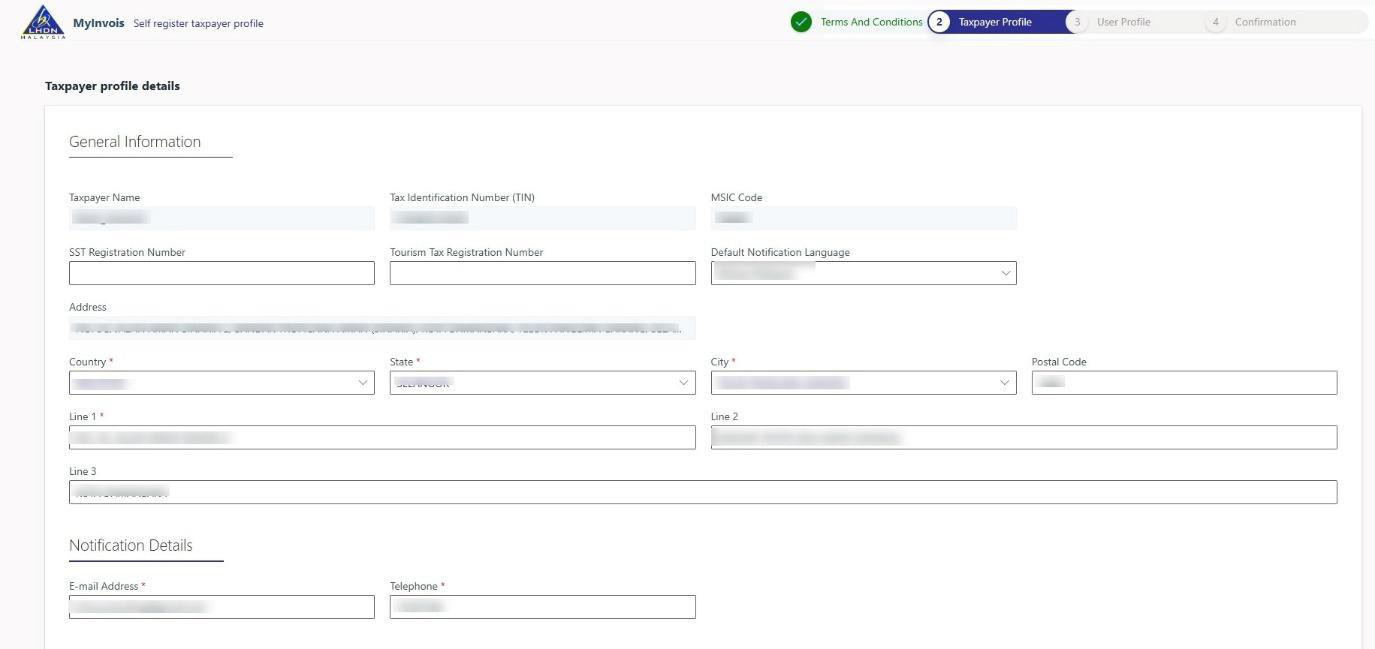
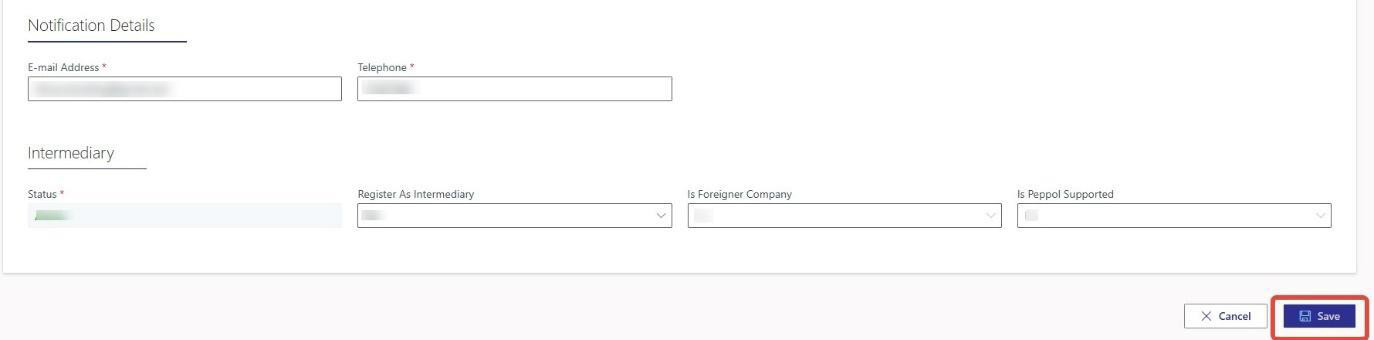
Complete the taxpayer profile: entity name, registration number, TIN, address, SST Registration Number (if you have one), and the director's phone number and email.
-
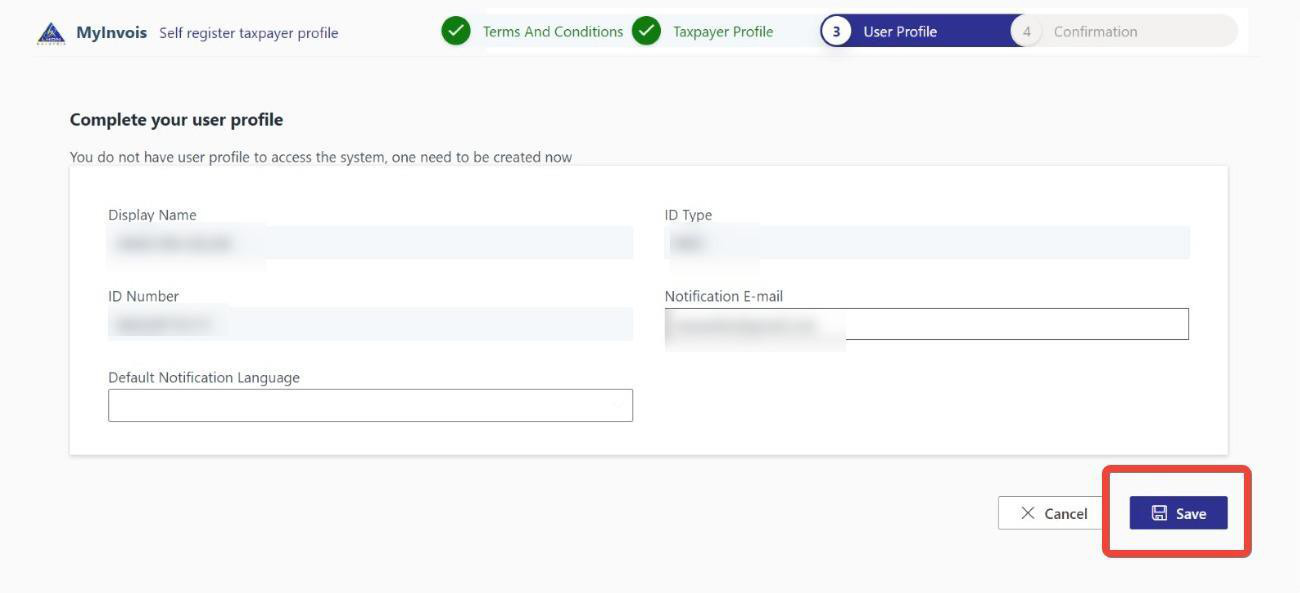
Set up the user profile: choose a default notification language and a notification email, then click Save. The notification email can be your own or your eezi onboarding contact's.
-
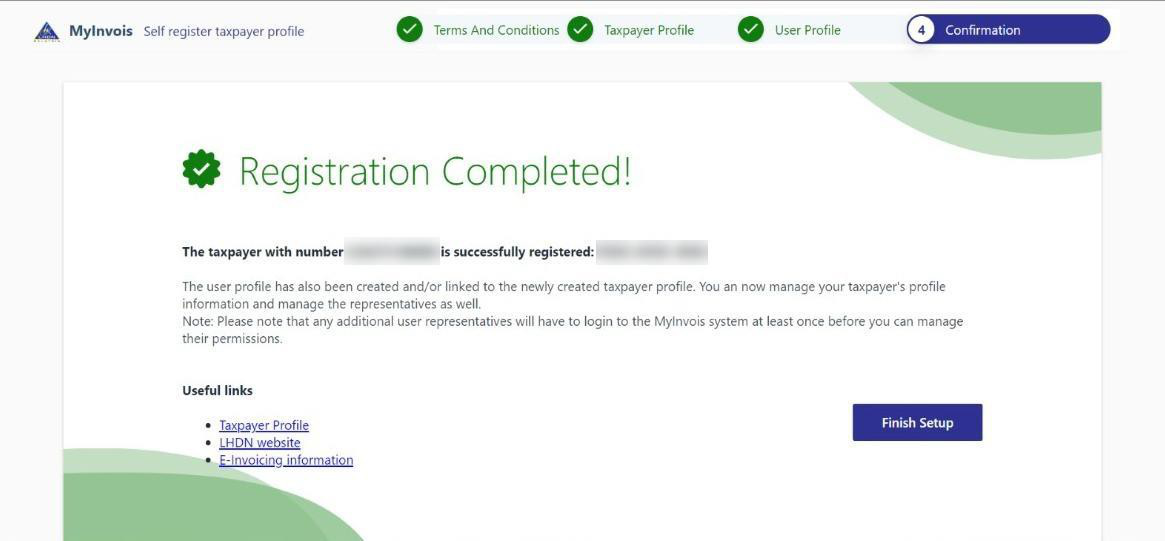
A confirmation page appears once both profiles are complete. Click Finish Setup.
Step 5: Register eezi as your ERP system
MyInvois authenticates every system that submits e-invoices. Registering eezi as an ERP system creates the Client ID and Client Secret eezi uses to submit, validate and retrieve your documents.
-
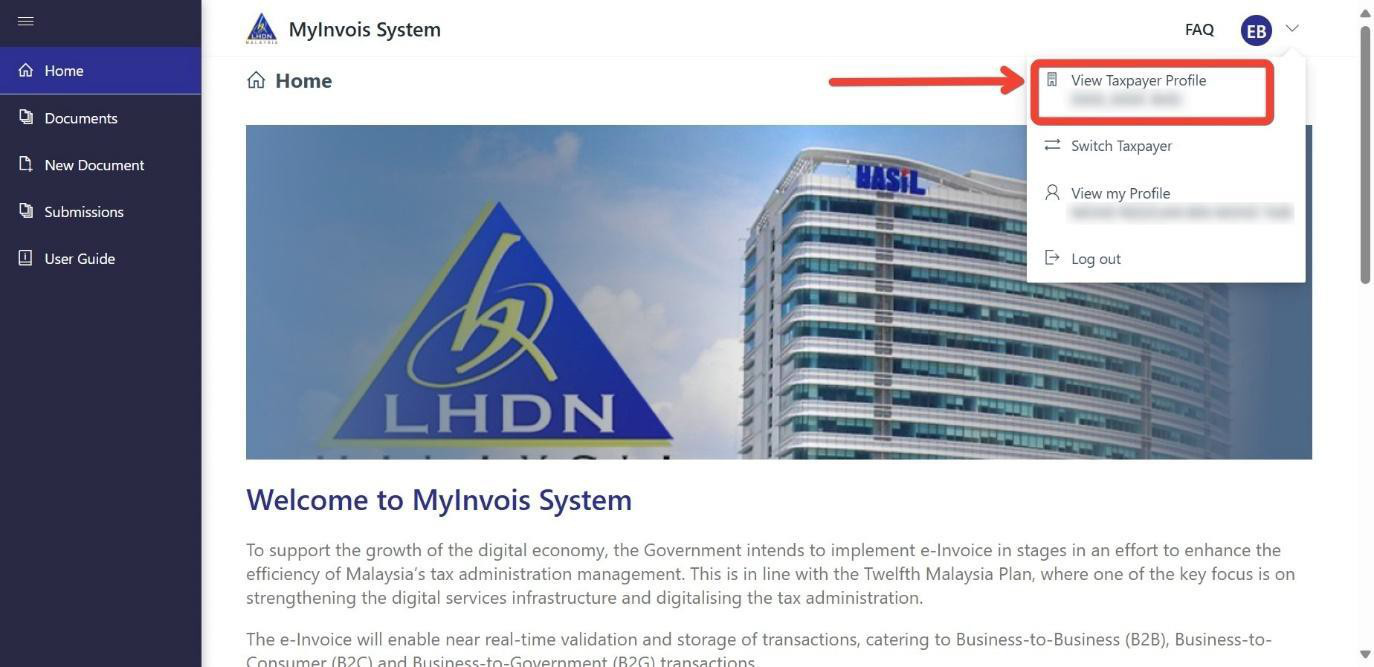
In MyInvois, open the profile menu in the top-right corner and choose View Taxpayer Profile.
-
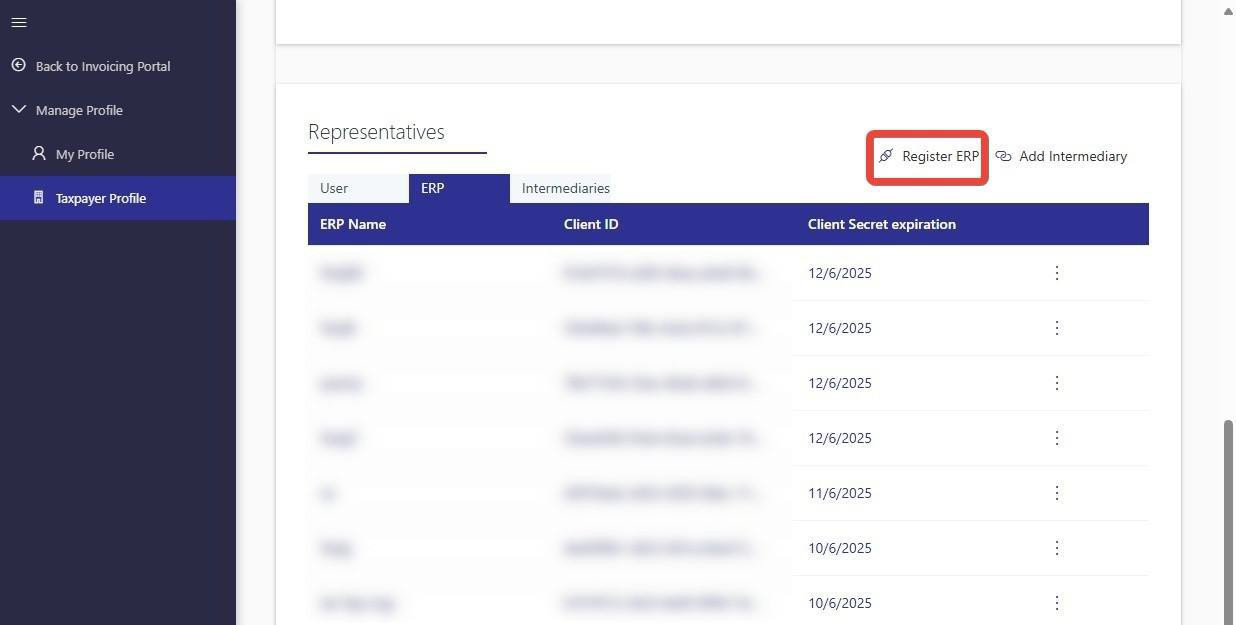
Scroll down to Representatives, open the ERP tab and click Register ERP.
-
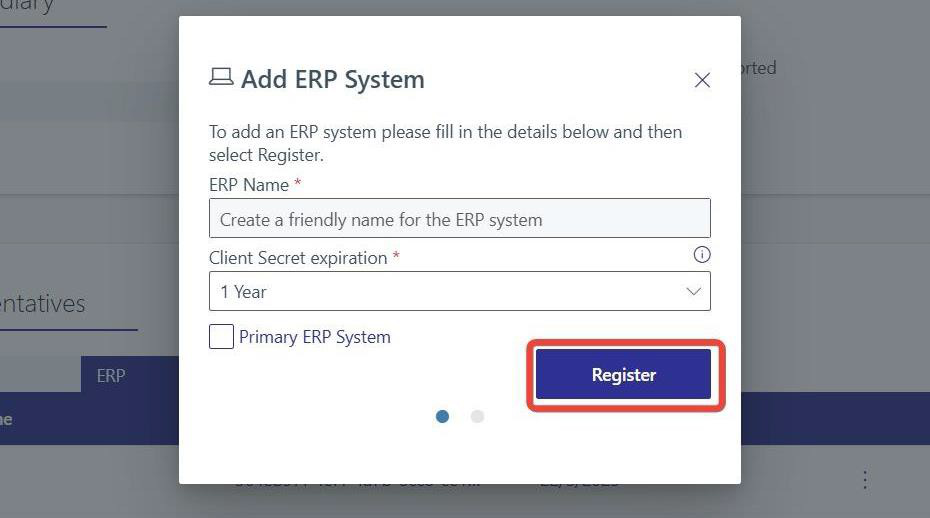
Enter an ERP name, for example
eezi, and choose the Client Secret expiration period. -
Tick Primary ERP System if eezi will be your main system. If eezi replaces another provider, make sure eezi is the Primary ERP.
-
Click Register.
-
Copy the Client ID and Client Secret shown, and enter them in the Malaysia tab of your organisation in the eezi web app.
Store the Client Secret securelyAnyone with the Client ID and Client Secret can submit invoices to MyInvois in your name. Enter them directly in eezi; do not email them. If they are lost, register a new ERP the same way. Note when the Client Secret expires: eezi cannot submit after that date until you register new credentials.
Step 6: Nominate VAT IT Malaysia as your intermediary
The intermediary nomination gives eezi the permissions it needs to submit, cancel and manage e-invoices for your company. Without it, eezi cannot act for you in MyInvois.
-
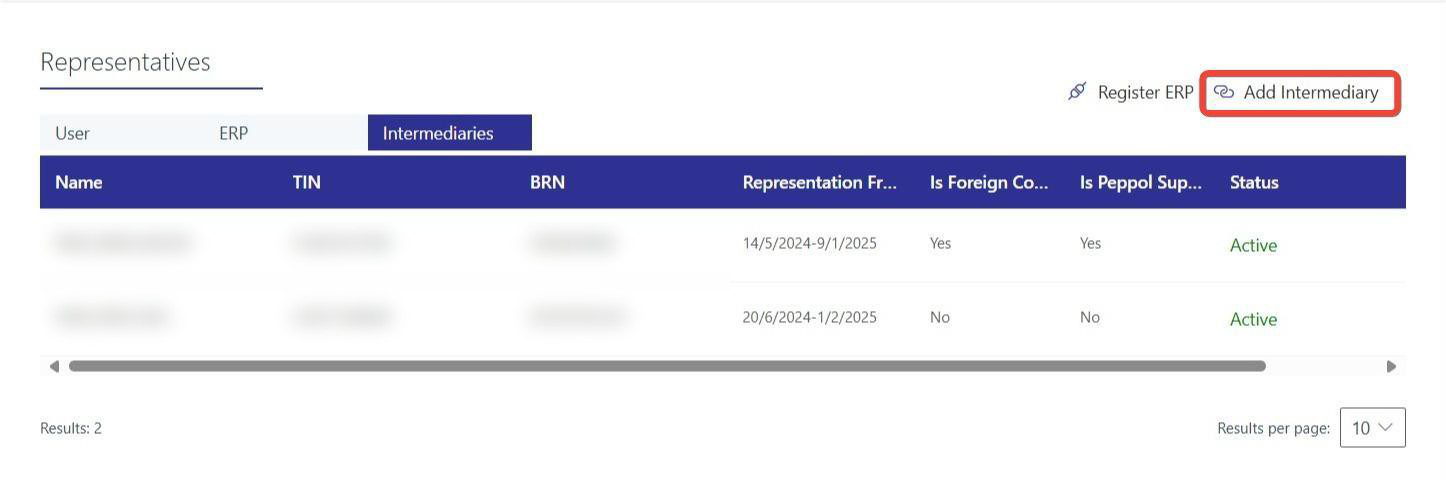
On the Taxpayer Profile page, scroll down to Representatives and open the Intermediaries tab.
-
Click Add Intermediary.
-
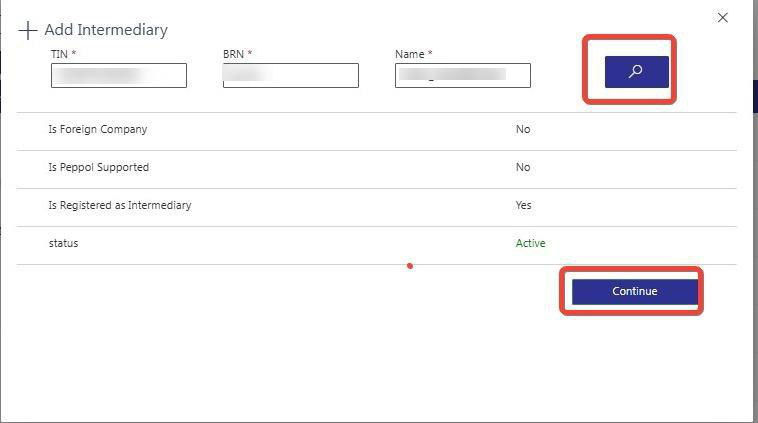
Enter the details exactly as below, then click the search icon to validate them:
Field Production Pre-production (UAT) Company Name VATIT MALAYSIA SDN BHDProvided by your eezi onboarding contact Company TIN C11675334100C11675334100Company BRN 200401034617200401034617 -
Click Continue.
-
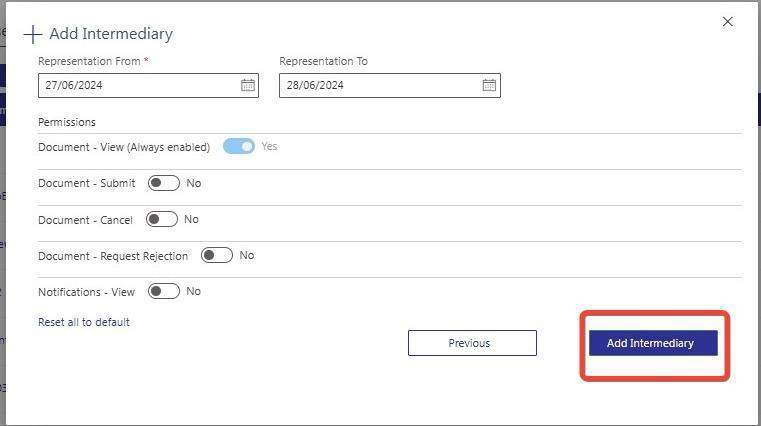
Set the Representation From and Representation To dates.
-
Set every permission to Yes, then click Add Intermediary.
-
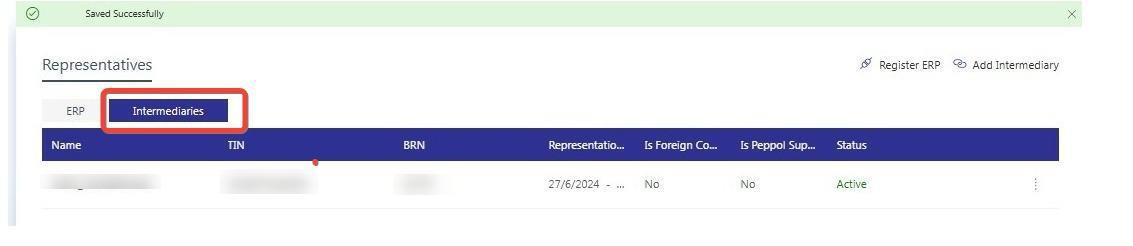
You return to the Taxpayer Profile page with a success message. On the Intermediaries tab, check that VAT IT Malaysia shows as Active.
What happens next
Your part is complete when:
- The Client ID and Client Secret are entered in eezi, and
- VAT IT Malaysia shows as an Active intermediary.
Let your eezi onboarding contact and [email protected] know. The eezi onboarding team will then:
- Confirm your Peppol registration and endpoint are active.
- Verify the ERP connection and intermediary nomination with MyInvois.
- Confirm when your business is ready to go live.
You can then send invoices using the Malaysia data model.
Troubleshooting
| Problem | What to do |
|---|---|
| No email from [email protected] | It goes to the director's email registered with IRBM. Check that mailbox, including spam. |
| The activation link has expired | Links are valid for a limited time. Start again from Option A to request a new PIN. |
| Cannot see company settings after logging in | The director role is not active yet, or not selected. Wait for the IRBM approval email, then use Role Selection. |
| Role application still pending after 5 working days | Contact IRBM. eezi cannot speed up this approval. |
| VAT IT Malaysia not found when adding the intermediary | Check the TIN, BRN and name are entered exactly as in the table, and that you are on the right portal (production or pre-production). |
| Invoices stop submitting after months of working | The Client Secret may have expired. Register a new ERP in Step 5 and update eezi. |
Still stuck? Contact [email protected] with your company name and TIN.
Updated 14 days ago